Many people receive emails in their inboxes from individuals and companies
whom they've never heard of before and that they've never used before. This kind of unsolicited email is commonly known as 'spam'. There are a number of reasons why you might receive spam. For example, if you fill in online forms or use chat forums or post to newsgroups you run the risk of people picking up your address, because you have published it over the Internet. Similarly, if you have a website that has your email address included on it, you also run the risk of people picking up your address. Spam is a nuisance and it can also be quite offensive, sick and distressing at times. Microsoft Outlook Express has a feature that will allow you to filter out most of your unwanted email, especially if the email is originating from the same address every time. Below is an example of how to set up a filter, you can set as many filters as you like but be aware, professional spammers are very good at what they do and you will always get a few that slip through the net. In certain instances it is possible that some spam emails may have an 'Unsubscribe' link at the bottom of the message. Therefore, it is sensible to unsubscribe to the one's that
have this option at least.
Another handy idea is to use two email addresses, one for filling in online forms
etc and one for personal friends and family only. There is a marked difference in the amount of spam a published email address gets compared to a private un-published email address.
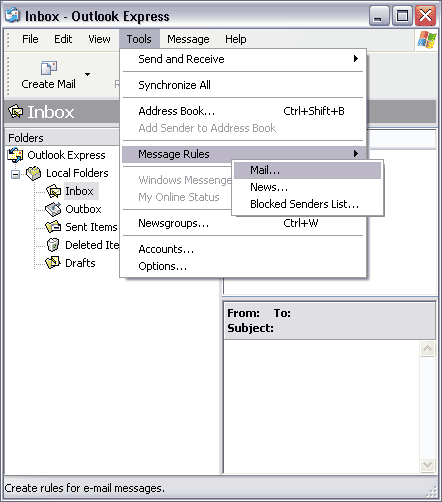
Firstly open Outlook Express, go to 'Tools' , select 'Message Rules' and
then 'Mail' as shown in the screen shot above.
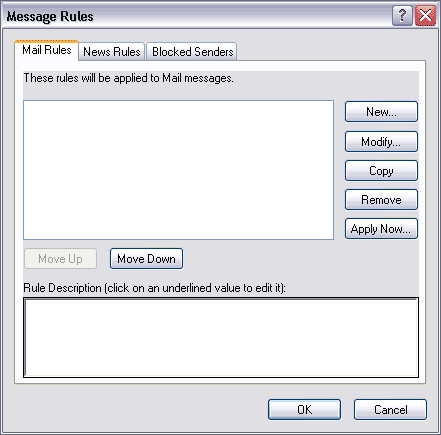
This will pop up the 'Message Rules' box as above. There are currently no rules
applied so the next thing to do is click on 'New'.
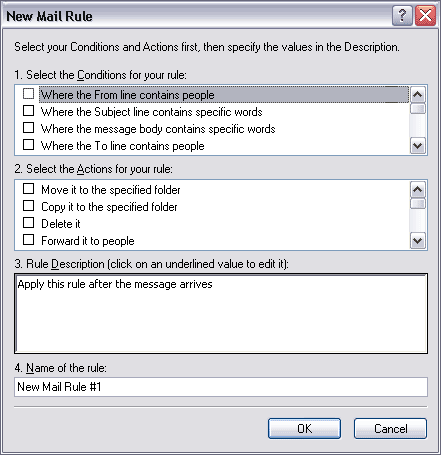
It's at this point you apply your rules. The first box will say 'Select the conditions
for your rule' and the second 'Select the actions for your rule'. If you scroll through
the boxes you will see the full list of conditions and actions.
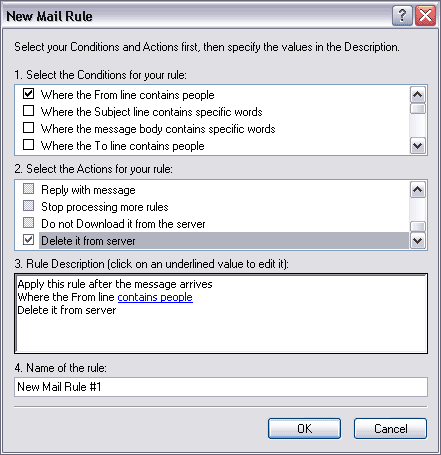
The first step is to establish a simple message rule. First of all tick the box next to
the line 'Where the from line contains people'. Secondly, tick the second box next to the line 'Delete it from server' (exactly as above). The rule that you have applied will tell Outlook Express to delete (from the server) any emails from a particular email address. You will notice that the third box called 'Rules Description' now has some text in it. Click on the blue link called 'Contains people' and follow it down to the next screen shot (below).
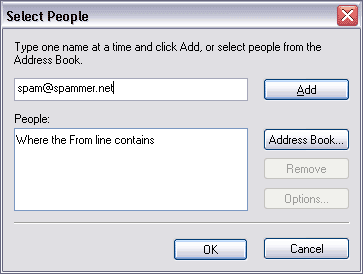
Once you have clicked on the 'Contains People' link, the above box will appear. This is where you set the email address that you want to filter (or delete from the server). The email address in this example is called 'spam@spammer.net'. Once you have added the email address click on 'Add' and follow it down to the next screen shot (below).
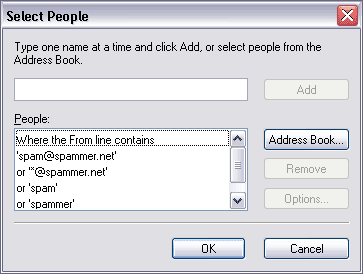
As you can see the address 'spam@spammer.net' is now in the box entitled 'People'. You will notice that in the example above a few other options have been added such as '*@spammer.net', 'spam' and 'spammer'. Putting in alternatives such as these will still make the rule apply even if the sender changes the email address from 'spam@spammer.net' to 'spam1@spammer.net' for example. Professional spammers are likely to spam you with one address and then with a slightly different one to try and get around mail filters such as these. The * represents 'any_name@spammer.net' so, it will filter any address that ends with '@spammer.net'.
One you've added your rules click on 'OK'.
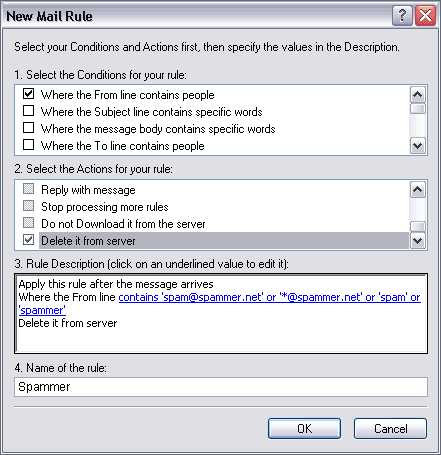
As you can see, your rule descriptions are all now shown in blue (as above). They can be amended or changed at any time. The next step is to name your rule in box four. This example has been called 'Spammer'
Once this is done click on 'OK'.
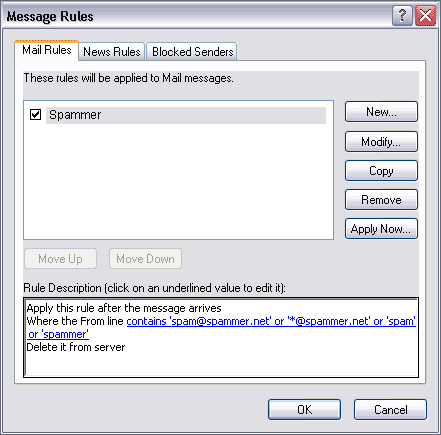
Here you can see your completed mail rule called 'Spammer'.
Now click on 'Apply Now'.
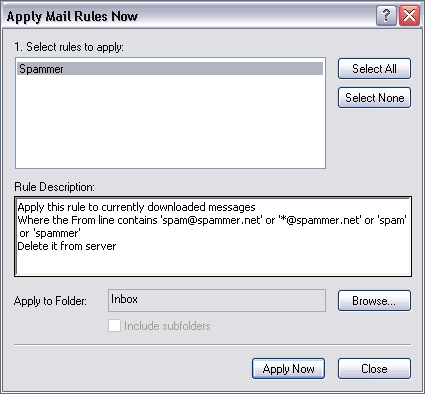
Simply click on 'Apply Now' again.
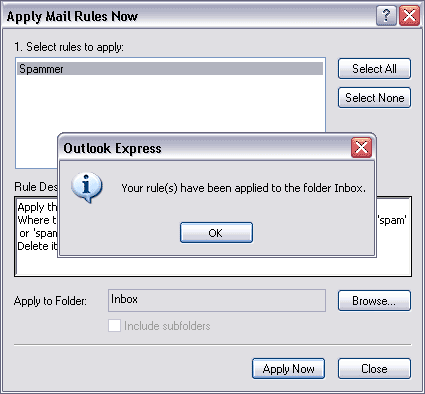
Now click on 'OK' to complete.
That completes setting up a message rule. You can add as many different rules
as you wish and you don't have to do them in the same way as the above example. You are able to change the conditions and actions to suit your needs. The condition 'Where the from line contains people' was used in this example. It is also very useful to use 'Where the message body contains specific words'. The message body is the actual content of the email itself. This means that you can filter out any emails with abusive language or of a sexual content by listing a few specific words.
Set up a filter and see what affect it has on the spam that you receive. Once you have created one, and have seen how it works you will find creating subsequent message rules more straightforward. For more information on spam and abuse issues
check out:
http://spamcop.net/
http://www.mail-abuse.org/